How to scan a QR code on your phone
On an iPhone or almost any modern Android, scanning a QR code is the same gesture as taking a photo:
- Open the Camera app.
- Point the rear camera at the QR code and hold still for a beat.
- Tap the notification that appears at the top of the screen.
No app to install. That covers the everyday case. The rest of this guide is for the other situations: codes that live in a screenshot, codes on a screen you can’t point a second phone at, and codes that refuse to scan no matter what you try.
Scan a QR code with your iPhone camera
Open the Camera app and point the rear camera at the QR code. A yellow frame marks the code and a notification banner appears at the top of the screen — tap it to open the link. The banner works from the lock screen too.
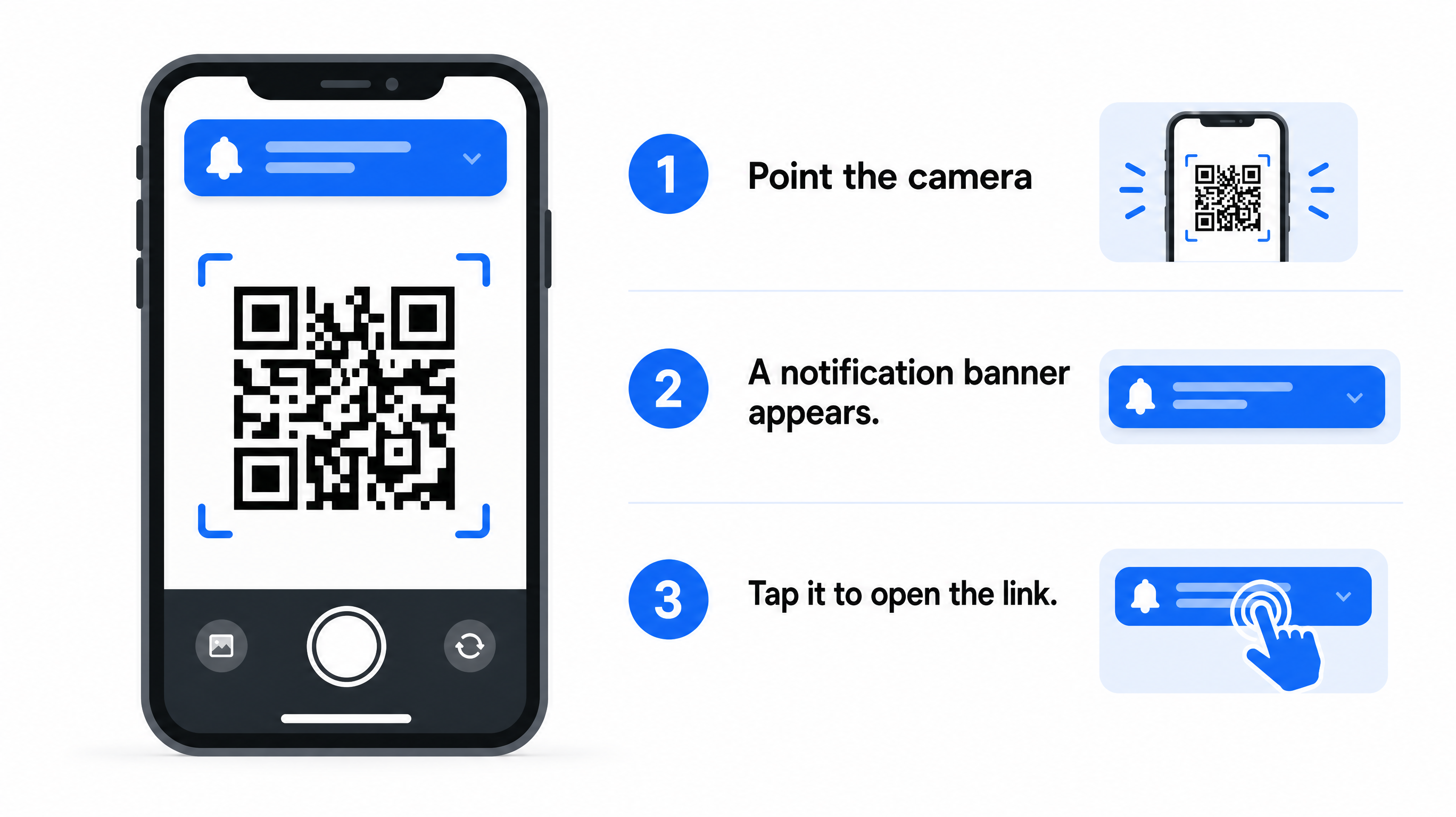
QR scanning has been built into the iPhone camera since iOS 11. If you are on a very old version, the toggle lives at Settings > Camera > Scan QR Codes; on current iOS it is on by default and there is nothing to enable.
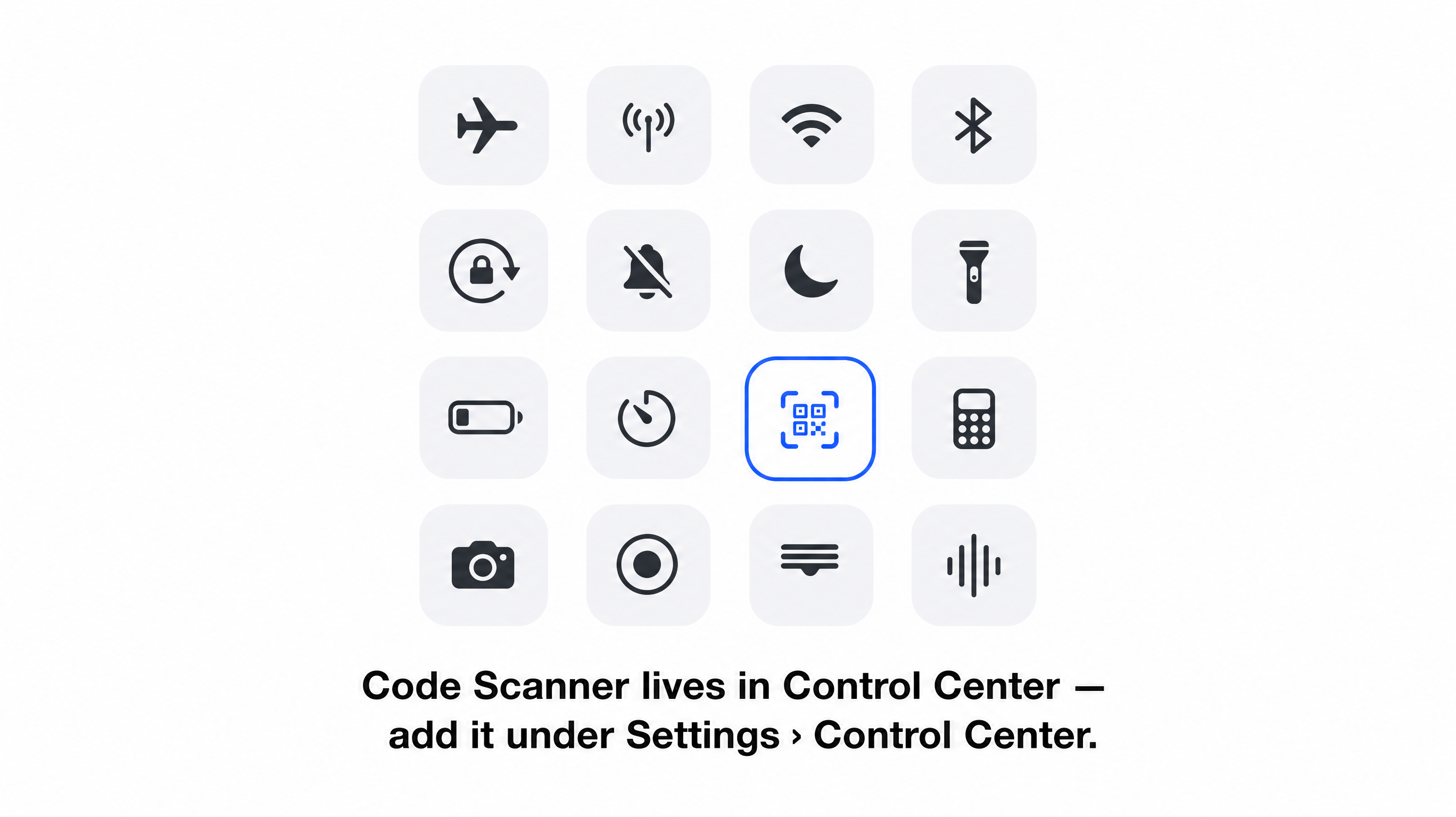
One more iPhone path worth knowing: Code Scanner, a dedicated scanning view you can add to Control Center (Settings > Control Center, then tap the + next to Code Scanner). It is quicker to reach than the Camera in the dark — it has its own flashlight button — and it does not save anything to your photo library.
Scan a QR code on Android
On most recent Android phones, the story is the same as on iPhone: open the camera, point, tap the link that appears. Google has shipped QR detection into the camera framework on modern Android, and recent models from the major makers — Samsung, Google, Xiaomi, Motorola and the rest — scan codes out of the box. Exactly where the feature sits in the camera app varies by manufacturer; on some it is automatic, on others it is a mode button next to the shutter.
If your camera ignores the code, Google Lens is the universal fallback. It is preinstalled on nearly every phone with Google services: open the Camera app and switch to Lens mode, or tap the Lens icon in your search bar, then point at the code. On Samsung Galaxy phones there is one more shortcut: swipe down from the top of the screen and tap Scan QR code in the quick panel.
Scan a QR code from a picture — screenshots, photos, your gallery
Plenty of QR codes never exist on paper — they arrive in a chat, an email, or a page you screenshotted. To scan a QR code from a picture, you don’t point a camera at anything: you read the code straight out of the image, from your photo library:
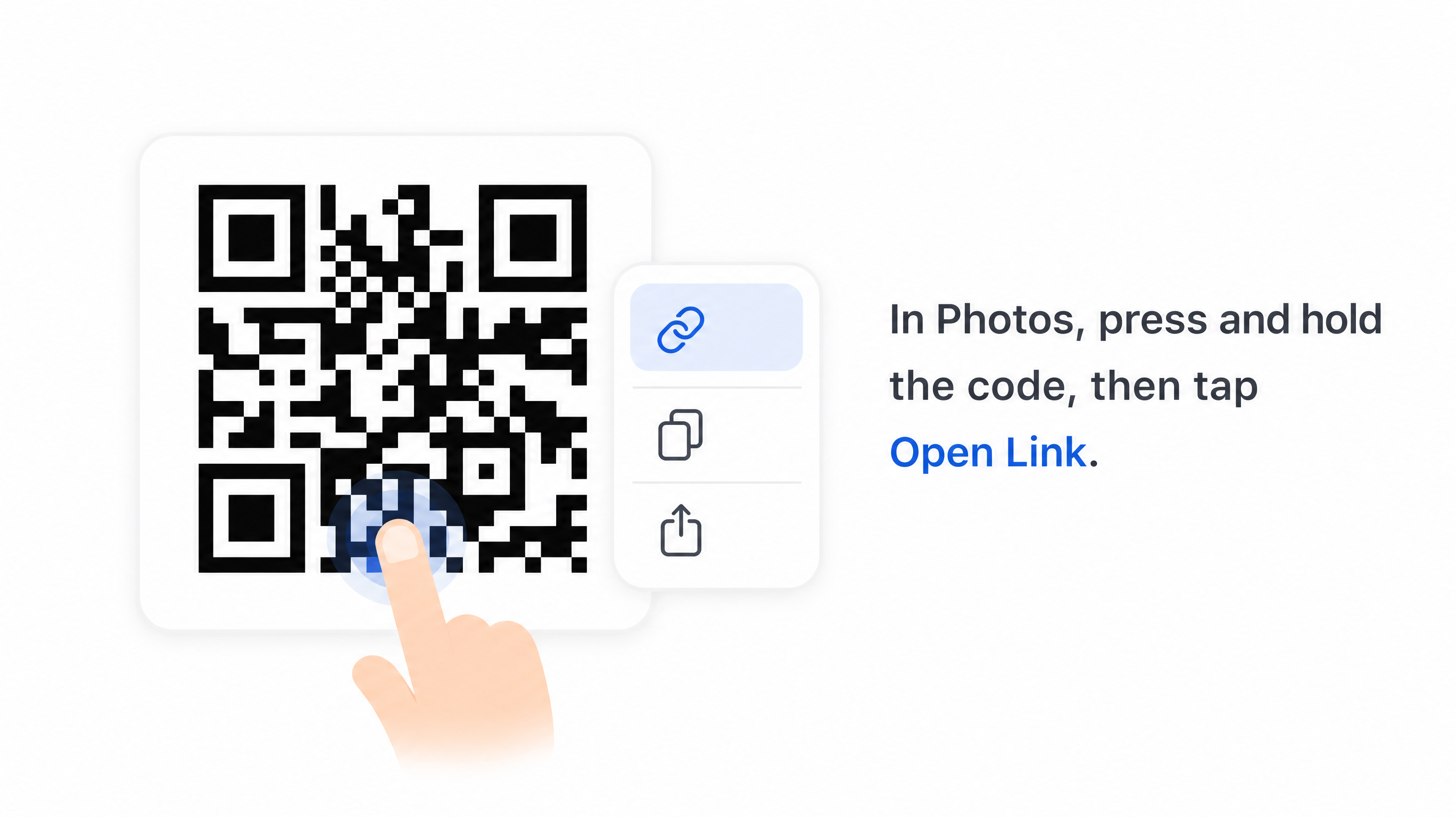
- iPhone: open the image in Photos and press and hold on the QR code. A link pops out — tap it. (Live Text, which powers this, needs iOS 15 or later.)
- Android: open the screenshot in Google Photos and tap the Lens icon — it scans the code in the image and offers the link.
On a computer, the same job is one drag: read the QR code from the picture right in the browser — it decodes screenshots, photos and scans, and nothing is uploaded.
Scan a QR code that’s on a screen
When the code is on a computer monitor, a TV, or someone else’s phone, just point your camera at that screen. Two small things help with screens: move back a little — screens have a grid of pixels that can shimmer into moiré when you are too close — and lower the screen’s brightness if it is glaring.
When the code is on your own screen, the camera obviously can’t photograph itself. Take a screenshot and use the gallery method above.
Still not scanning? The code may be the problem
If you have tried distance, angle, light, and both the camera and Lens, and the code still won’t read, the phone is probably not the problem — the code is. And it almost certainly hasn’t “expired” — static QR codes never do (see which codes can); something physical is wrong with it. Prints that are too small or low-contrast (how big should a QR code print?), paper creased across a corner square, a label covering part of the pattern, or a quiet zone cropped off in a layout: all of these stop a scanner before your phone ever gets the data.
Two things you can do with the image you have:
- Check it — upload the picture and the tool reads it and reports the things scanners care about: contrast, quiet zone, finder patterns, size.
- Repair it — the tool recovers the exact content from a blurry, creased, or partially covered code, entirely in your browser, and rebuilds a clean code you can actually scan.
And if the code was never on paper or a screen at all — if it came out of an AI image generator — it may have been unscannable from the moment it was drawn. See why ChatGPT QR codes don’t scan.
For the full breakdown of what physically breaks a code — quiet zone, contrast, module size, finder patterns, error correction — and how to tell which one you’re looking at, see Why is my QR code not scanning?.
Frequently asked questions
Where is the QR code scanner on my phone?
On an iPhone there is no separate scanner to find — the Camera app scans codes by itself, and you can add a dedicated Code Scanner to Control Center. On Android it depends on the manufacturer: most recent camera apps scan automatically, and Google Lens (in the camera or the search bar) is the fallback.
Can I scan a QR code without an app?
Yes. iPhones (iOS 11 and later) and most recent Android phones scan QR codes with the built-in camera, and Google Photos reads codes from screenshots. A dedicated scanner app is rarely needed anymore.
How do I scan a QR code from a picture?
On iPhone, open the picture in Photos and press and hold on the code; on Android, open it in Google Photos and tap Lens. On a computer, drag the picture into a browser-based QR code reader and it decodes the image locally.
Can you scan a QR code from a screenshot?
Yes. A screenshot is just a picture, so use the gallery method: on iPhone, press and hold the code in Photos; on Android, tap Lens in Google Photos. Two things make it fail: a crop that cuts into the white margin around the code, and a code too small on screen — zoom in before you take the shot.
Why won’t my phone scan a QR code?
Check the basics first: enough light, the code filling a good part of the frame, no glare, no corner covered. If several phones still can’t read it, the code itself is likely damaged or malformed — check which, repair it here, or read the five measurable causes.